|
|


|
The .NET browser allows a user to view and search for specific records stored in Global Shop tables. In addition, queries may be created and saved, allowing custom variations of the browser to be used instead of the standard Global Shop browser definitions. The records in the browser may be filtered, allowing only specific records to be displayed. Up to 6 custom GAB scripts can be attached to each browser.

The drop down list displays the current active browser. It will also contain any SQL queries saved via the Query button. If saved SQL queries exist, any of them may be selected from this drop down list. The browser will remember the last settings applied by the user.
To use the Type-Ahead feature in the browser, use the down arrow in the In Column to choose which column the search will be based. Next, click inside the Type-Ahead field and start to type a word. As the user types the word, the browser will narrow the search of the items in the list to what the user input.
Each column can be sorted in ascending or descending order.
Double click on an item in the list or click Select to choose an item to populate the previous screen. Click Cancel to close the browser.
Available Buttons and Checkboxes
 Browser Hooks button. This screen allows up to 6 GAB script buttons to be added to the browser. This button is only visible if the Browser Hooks option is checked in System Support > File > User Security Maintenance. Click here for more information.
Using browser hooks gives the ability to launch custom GAB script(s) right off of the browser by the click of a button. For example, if a user wants a new customer to be created on the fly, a GAB script can be created and tied to the customer browser, allowing a button to be clicked to create a new customer from the browser. The hook will be associated directly to the browser based on the browser mode, calling program, and switch(s) if applicable. If desired, the hook can be launched any time the browser mode is used in the system (for example, any time the Customer browser is launched). The browser buttons are company code specific. Any user who has access to the browser will be able to see the custom GAB buttons. If additional security is needed to restrict users from seeing the button(s), the security logic must be applied within the GAB script itself.
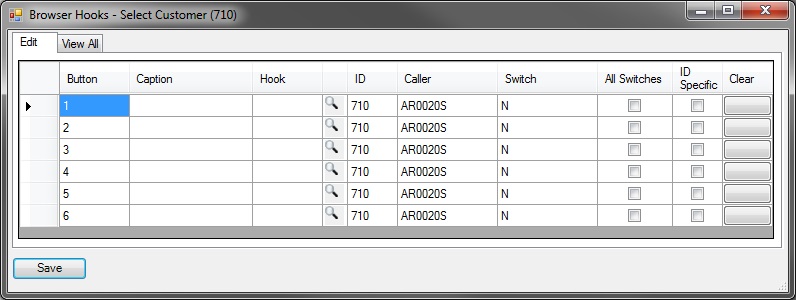
Clicking the Browser Hooks button opens this screen:
Edit tab
Button. The button number is assigned by the system, 1-6. Buttons 1-6 will be displayed left to right on the .NET browser
Caption. Enter a caption/label for the button. The caption is what will appear on the button when launching the browser.
Hook. Open the Hook browser for a listing of all user-defined hooks set up through System Support > Administration > GAB Script Hook Maintenance. Attach the custom script to be used when clicking the button.
ID. The ID is the system-assigned number for the Browser type. In the example above, ID- 710 represents the Customer browser.
Caller/Switch. The Caller is the program from which the browser was launched and the Switch represents the mode of the caller program in which the browser was launched. Typically, the Switch will be one of the following: N - New mode, O - Open mode, V - View mode and D - Delete mode . In the example above, the customer browser was launched from caller program AR0020S in New mode. Specifically, the browser was launched by going to Order Entry > File > Sales Orders > New and opening the Customer browser.
All Switches. This box should be checked if the button should be accessible from all Switches associated with the Caller program. If this box is unchecked, the button will only be accessible if the Caller program with the Switch listed on the screen is called. Note: If the ID Specific box is checked, it will override this option.
ID Specific. This box should be checked if the button should be accessible any time the particular Browser ID is launched. In the example above, if the box is checked, any time the Customer browser is launched, the button would be accessible. If a particular button is flagged as being ID Specific, no other hooks can be assigned to the button from any other calling program/switch. Note: This option overrides the All Switches option.
Clear. Click this button to delete the information in the selected Button row.
Click Save when finished entering information.
View All tab
This tab will list all hooks associated with the Browser ID. In the example below, all of the instances of a button added to the Customer browser is displayed.
Click the Purge button to remove all button/hooks from the Browser ID.
Example
This example demonstrates the browser hook button in action.
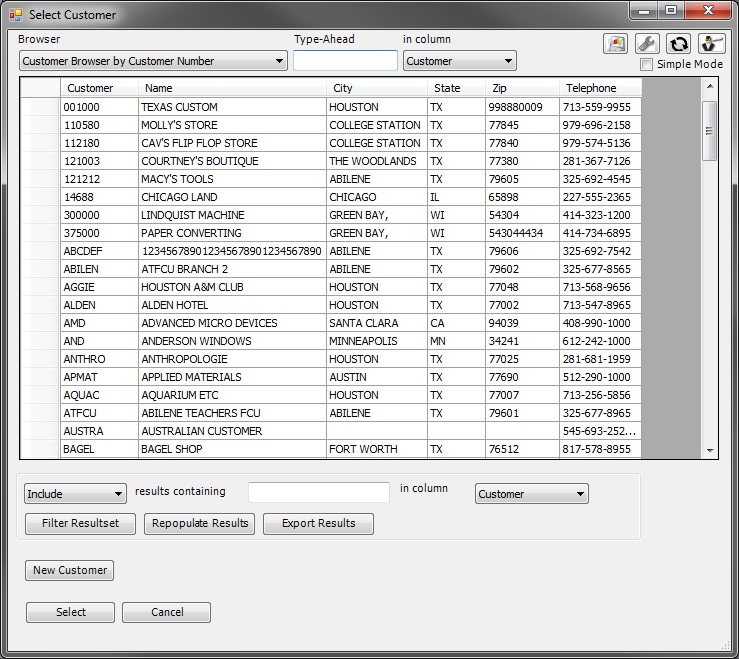
A user wants the ability to create a customer on the fly, and needs to be able to do so when entering a new sales order. A custom GAB script was created to accomplish this task and was set up as a user hook in System Support > Administration > GAB Script Hook Maintenance. Go to Order Entry > File > Sales Orders > New. Once the Customer browser appears, click the
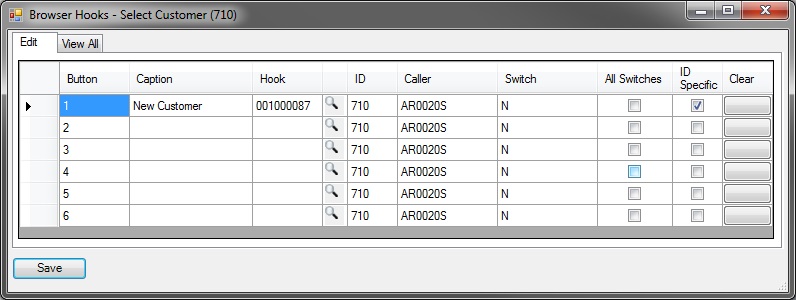
A caption of New Customer is entered. The user-created Hook ID tied to the custom script is selected in the Hook browser. The new customer should be able to be created any time the customer browser is accessed so the ID Specific flag is checked. Click Save. Exit out of the Browser Hooks screen. Exit out of the Customer browser. The next time the Customer browser is launched, the following button will be available just below the Query Filter section:
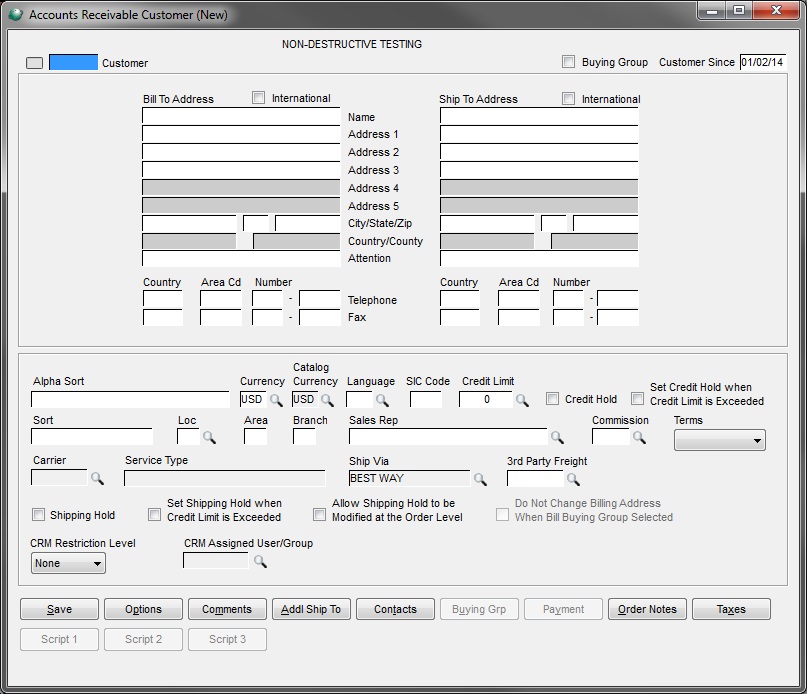
Click the New Customer button to launch Accounts Receivable > File > Customers > New:
Enter the Customer information as needed and click Save and exit the screen. The browser will close, and the new customer entered will be populated on the sales order header screen.
Note: This is just one example of the many different ways the browser hook buttons can be utilized. Contact GSS for more information and/or if a custom GAB script is needed. |
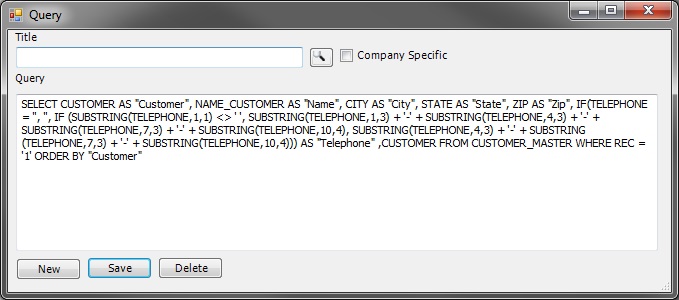
 Query button. This screen allows the user to create different SQL statements in order to build custom variations of the browser. This button is only visible if the Query Builder option is checked in System Support > File > User Security Maintenance. Click here for more information.
This screen allows the user to create, save, or delete a SQL search string. The query can be limited to a specific company by checking the Company Specific check box or can include any company codes the user is allowed to access. The Query entry area is pre-populated with the key column names required for the Pervasive table referenced by the browser until a query is saved. Column names can be added or removed; however, removing the key fields may cause errors. More than one table may be referenced in the SQL statement for use in a browser. Click New to create a new search query. Click Save to save the current search query. Highlight a previously saved query in the Title field browser then click Delete to remove a query.
Example
Select ID, PROGRAM, SCREEN, SCRIPT_DESC, MENU_REF FROM HOOK_GLOBAL ORDER BY PROGRAM
Note: "Select *" is not supported. |
 Refresh button. Click this button to reload the browser with the latest data.
 Help button. Checking this button launches this Help topic.
Simple Mode. Check this box to remove Query Filter Options below the scrollable window.
Query Filter Options
The Query Filter Options portion of the browser is only visible when the Simple Mode check box is not checked.

Use the down arrow in the first field on the left to choose an Expressions. There are 8 expressions, for most browsers, that can be used to create the rules or formulas for a query. Click on the first drop down box at the left to open the menu of all expressions. The symbols/word represent:
Include |
Include results containing 22 in column Report ID |
This expression will show all reports that have a 22 somewhere in the Report ID. |
Exclude |
Exclude results containing 22 in column Report ID |
This expression will not show any reports that have a 22 somewhere in the Report ID. |
*CONTAINS |
See below for explanation. |
This expression yields results where the value 22 is found embedded in the field contents. |
**LIKE |
See below for explanation. |
|
< |
Less Than |
|
<= |
Less Than or Equal To |
|
> |
Greater Than |
|
>= |
Greater Than or Equal To |
|
= |
Equal To |
|
<> |
Not Equal To |
A wildcard “%” can be used with the expressions CONTAINS and LIKE.
*The expression CONTAINS and = are not the same. The = expression yields results where the value is matched exactly; thus “= NO” would list records that contain only the word NO in the field contents (GADGET NO TABS, CYLINDER NO FLANGE). The CONTAINS expression yields results where the value is found embedded in the field contents; thus “CONTAINS NO” would list any records with the consecutive letters NO in the field contents (SNOW, KNOB, NORMAL).
**The expression LIKE is similar to CONTAINS but can be used to look for a value that begins (ABC%) or ends (%ABC) in a specific pattern rather than having that pattern embedded in it. An example, if CONTAINS RMS yielded results of FTRMS12, LTRMS12, RMS12 and RMS 13, LIKE RMS% would only yield results of RMS12 and RMS 13 since the other 2 records do not begin with RMS.
Then type in the word or phrase needed to narrow down the search in the field after “results containing” on the screen. After the “in column” phrase on the screen, use the down arrow to choose a column name. Click Filter Resultset to launch the search query with the input parameters. Click the Repopulate Resultset button to reset the browser to restore the default contents. Clicking Export Resultset will allow the user to save the query as a .csv file in a specified location.